
 I bought my first IBM PC in 1984. I was a DOS expert in the ’80s, then when DOS went away I became a Windows expert. I even spent a year (with my partner) as a paid presence on a PC support site. But as computers got more powerful, Windows became more bloated and intrusive. In 2014 when it was time to replace my laptop, with the ugly prospect of Windows 8 before me, I decided it was time to jump: I bought a Mac.
After 30 years as a PC person, in 2014 I became a Mac person. And I will never look back. I LOVE my Mac. It took me two full days of stumbling to feel comfortable, but right away I was in awe of the UI sorcery that made the OS so very intuitive.
Considering a switch?
There are many considerations when deciding what platform to use. This post assumes you’ve already thought hard about it and have decided to jump into the Mac wading pool.
Welcome! Since I am just about one year into this transition (as of my writing this post in 2015), I’ll draw on my own recent experience with the switch to hopefully make this easier for you. I’ve broken this process down into three main sections: Hardware, Operating System, Software; and then go into a few Annoyances.
Hardware
Especially if you are a 30-year veteran of PC-land like I am, dipping your toe into the Mac waters may be mysterious at first, but really, once you look under the hood, there’s not much difference on the hardware side of things.
Which Mac?
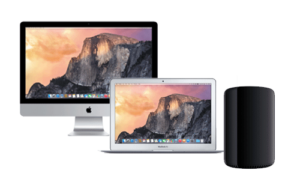 Your first decision will be which Mac to get, starting with whether you want a laptop or a desktop computer. I’m one of those mobile people: I haven’t used a desktop computer for about 15 years and can’t imagine ever going back.
Whether you choose a laptop or a desktop, get ready for a great experience. When I was a PC user, I always replaced my laptop every 2-3 years. I bought my first Mac laptop in 2014, and I replaced it in 2023.
Keyboard Differences
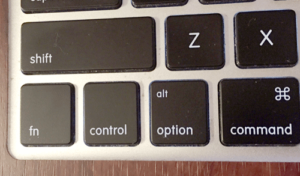 The very first thing you will notice about your Mac is the differences in the Mac keyboard from a Windows keyboard. In the list below, the symbol in parentheses is the symbol typically shown in keyboard shortcut lists.
- Delete. Where the Windows keyboard has a Delete key and a Backspace key, the Mac only has a Delete key. And to make it more confusing, the behavior of the Mac Delete key matches that of the Windows Backspace key. I know, I know — but if you give yourself a few days, you’ll get used to it.
- Command (⌘). Where the Windows user is accustomed to using the Control (or Ctrl) key in keyboard shortcuts, the Mac uses the Command key. Again, give yourself a few days, a week at most, and you’ll have relearned this.
- Option (⌥). Looking for the Alt key? On the Mac it is called the Option key. But luckily on many Mac keyboards, it says “alt” on the key, too.
- Control (⌃). You also see a Control key on the Mac keyboard, which is especially confusing for those who have jumped over from the a Windows side, because it is not the same as Control on Windows.
Once you master the difference in these keys, you’ll find that many of the keyboard shortcuts you’re used to are the same: Ctrl-C in Windows is ⌘-C in MacOS. Here’s a great list of keyboard shortcuts for the Mac.
Input Devices
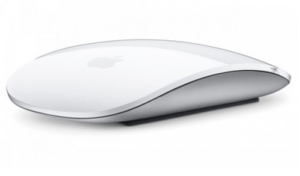 When I bought my new Mac coming out of the Windows world, I automatically bought a Mouse too. I mean, of course you need a mouse, right? I bought the amazing Magic Mouse, which has a solid, smooth top that has switches beneath so it is functionally a two button mouse depending on the side you click. But also, and this amazes me, that smooth top surface of the mouse is a mini trackpad. Design genius!
But here’s the thing: Once I got used to the trackpad on my laptop, I never used the mouse again. Not once. The trackpad on the MacBook is so intuitive and beautifully designed that a mouse just isn’t necessary. The way it works is very different from a trackpad on a Windows machine, so be patient for a day or two until your brain fully switches over to the new way of doing things. And after that you’ll wonder how anybody could use anything else!
My advice? If you get a laptop, don’t buy a mouse yet, because you might not need it. I ended up giving my mouse away.
I/O and Adapters
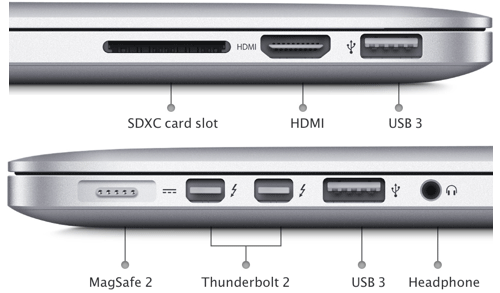 The MacBook Pro with Retina that I got has the IO ports shown here. It does fine with the USB and HDMI peripherals I already had. The MagSafe port is what you use to connect to your power adapter — it’s pretty nice: it’s magnetic so it will just snap away if it is tugged on: no more tripping over your power cable! [This image of the ports is from 2015… this a more up to date now!]
As a Windows computer user you are used to Ethernet, so let me introduce you to Thunderbolt. For connecting up to Ethernet (when I don’t use wireless), I use a Thunderbolt adapter (which you will need to order separately). Here’s more information about Thunderbolt. My current external display supports HDMI and my external drive supports USB, so that’s what I use — but I could also connect these things via Thunderbolt, too.
Operating System
 We say “Mac” and “Windows,” but really, that’s comparing apples and oranges (I know that looks like a pun at first, but it’s not). What we should say instead of Mac and Windows, is MacOS and Windows.
MacOS (previously called OS X) is the operating system that runs on the Mac. The versions used to be named after big cats: Mountain Lion, Snow leopard. Now Apple names their MacOS versions after US natural landmarks: Yosemite, Sequoia, Tahoe. When you get your Mac, it might not have the latest version of the MacOS, but here’s where you will experience an enormous difference between MacOS and Windows: It is remarkably painless to update the OS.
Okay, Windows users, you may not believe this story, but I swear it is true: When I got my first Mac in 2014 it had OS X Mavericks. Shortly after that, OS X Yosemite was released. As a veteran Windows user, I had more than my fair share of OS-upgrade horror stories, so I nervously held off on the update. Eventually I decided I had to upgrade. I backed everything up, waited for the weekend, emailed my clients to expect me to be offline for a while, prepared for an entire weekend of computer hell, crossed my fingers, and nervously started the upgrade.
And about 30 minutes later it was all done. Nothing was lost, nothing was broken, and everything was fine. I love my Mac!
Migrating from Windows to Mac
Apple provides a tool called Migration Assistant to largely automate your process to migrate your files and even some settings over from your Windows machine to your new Mac. (It will also help you migrate from your old Mac to a new one.) Full disclosure: I didn’t use it. But if I’d known then what I know now, I would have.
Software
The hardware gives us the power and the speed and, well, the electrons to do our work. But what we really interact with is the software and the OS. Luckily for all of us, most of the software we use these days is available whether you are on a Windows machine or a Mac, but sadly, software written for one platform will not run on the other. For example, if you own MS Office for Windows, you will have to scrap it and get MS Office Mac. [Or better yet, dump MS Office and switch to LibreOffice!] There are free Apple-provided alternatives for MS Office pre-loaded on your computer, but I confess I’ve never tried them.
Virtual Machine
 Many Mac users install a virtual machine (VM) on their computer so they can run Linux (or even Windows) programs on their Mac. This is of course not unique to Mac users: when I had a Windows computer I used a VM to run Linux when I needed it. You install the VM software (I use VMware Fusion, but I’m been told that Parallels is a good tool, too), and then in that VM you install the other operating system. I used to have Windows installed in a VM to fire up when I ran into an annoyance that required it (see below), or when I needed to run software that is not available at all on a Mac (such as some engineering software that I rarely have to use anymore now).
Finder vs. Windows Explorer
 If you’re a long-time Windows power user like I am (was?), then you probably have come to depend on some utilities and some of the lesser apps that come with the OS. For me the biggest adjustment from switching (other than the annoyances I discuss later in this post) was to figure out Finder. This is the file management utility for Mac, analogous to Windows Explorer on Windows.
Here is an article about switching from Windows Explorer to MacOS Finder.
A utility that I use heavily to make Finder more powerful is called Default Folder X, which makes it easy to instantly navigate to recent folders, and more. [2026 edit: After all these years, I still use this tool every day.] Another file-system-related utility I recommend is DaisyDisk. It provides a graphically compelling way to visually analyze files and folder contents, letting you see how you are using up your disk space. I don’t use this often, but every time I do, it’s so visually stunning that it makes me grin. And more than just a pretty face, it’s informative too.
Annoyances
Finally, I want you to go into this adventure with your eyes open: There are a few unfortunate annoyances you need to know about. At the heart of this issue is that Apple and Microsoft are pretty much mortal enemies, and all us users suffer because of it. Even with these annoyances, I am so over-the-moon thrilled with my switch to Mac that it’s still worth it for me.
MS Office
 I used to spend about a quarter of my 50-hour workweek using various parts of MS Office; and MS Office for Mac is not as robust as MS Office for Windows. On a scale of 1 to 10 where MS Office for Windows is a 10, I’d give MS Office for Mac a solid 9.8. What this means is almost every “typical” user will never run into any issues and be perfectly happy… probably much happier than they were in Windows. But if you are a power-user, you will every now and then get frustrated.
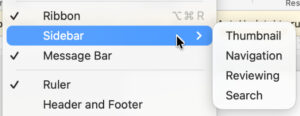
On the flip side, there is a fantastic feature in MS Word for Mac that is not in MS Word Windows (that I know of). In Word for Mac, from the View menu, choose Sidebar, then Navigation (but it doesn’t matter what you choose from this submenu). Now you will have a panel to the left of your page from which you can easily skip around to different parts of your document. Or do a search and see a list of all the results.
Anyway, I digress…
Calendar and Contacts
 My biggest issue when I switched to Mac was with Outlook. After a lot of effort to make everything work smoothly between my computer and my devices, I finally ditched Outlook for the native MacOS mail and contacts apps, and to Google Calendar. However, this was long ago, and I hear from others that it is a much smoother journey now.
The moral of the story
After 30 years in the PC camp and riding the Windows pony for as long as it has been around, I finally defected to MacLand. It was a surprisingly easy journey, I am very happy with the move. In a nutshell, since I’ve moved to the Mac, I feel like the OS has gotten the heck out of my way.